
[VSCode] 개발할 때 유용한 커스텀 설정
UI 변경
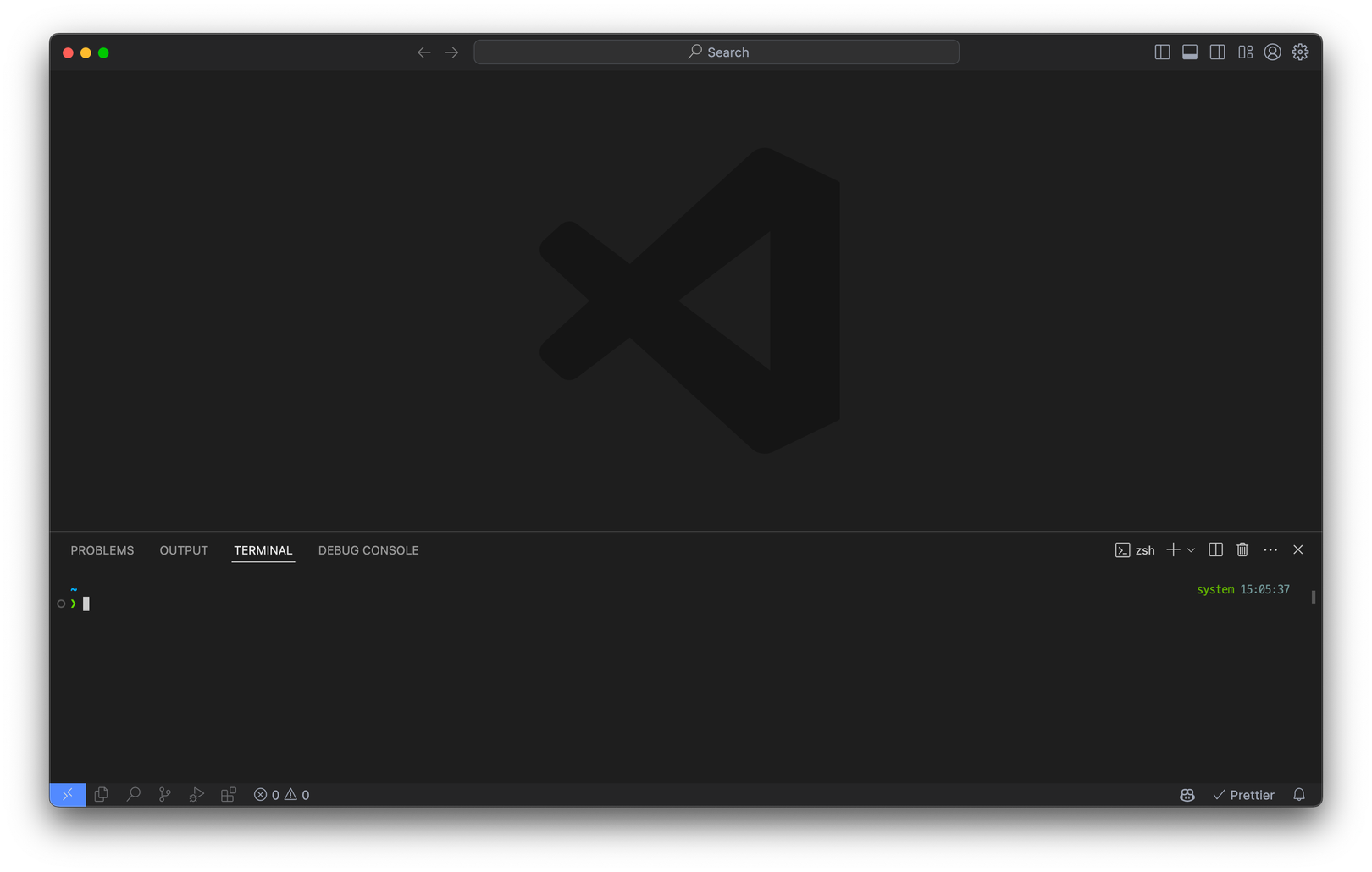
에디터 넓게 사용하기(Activity Bar)
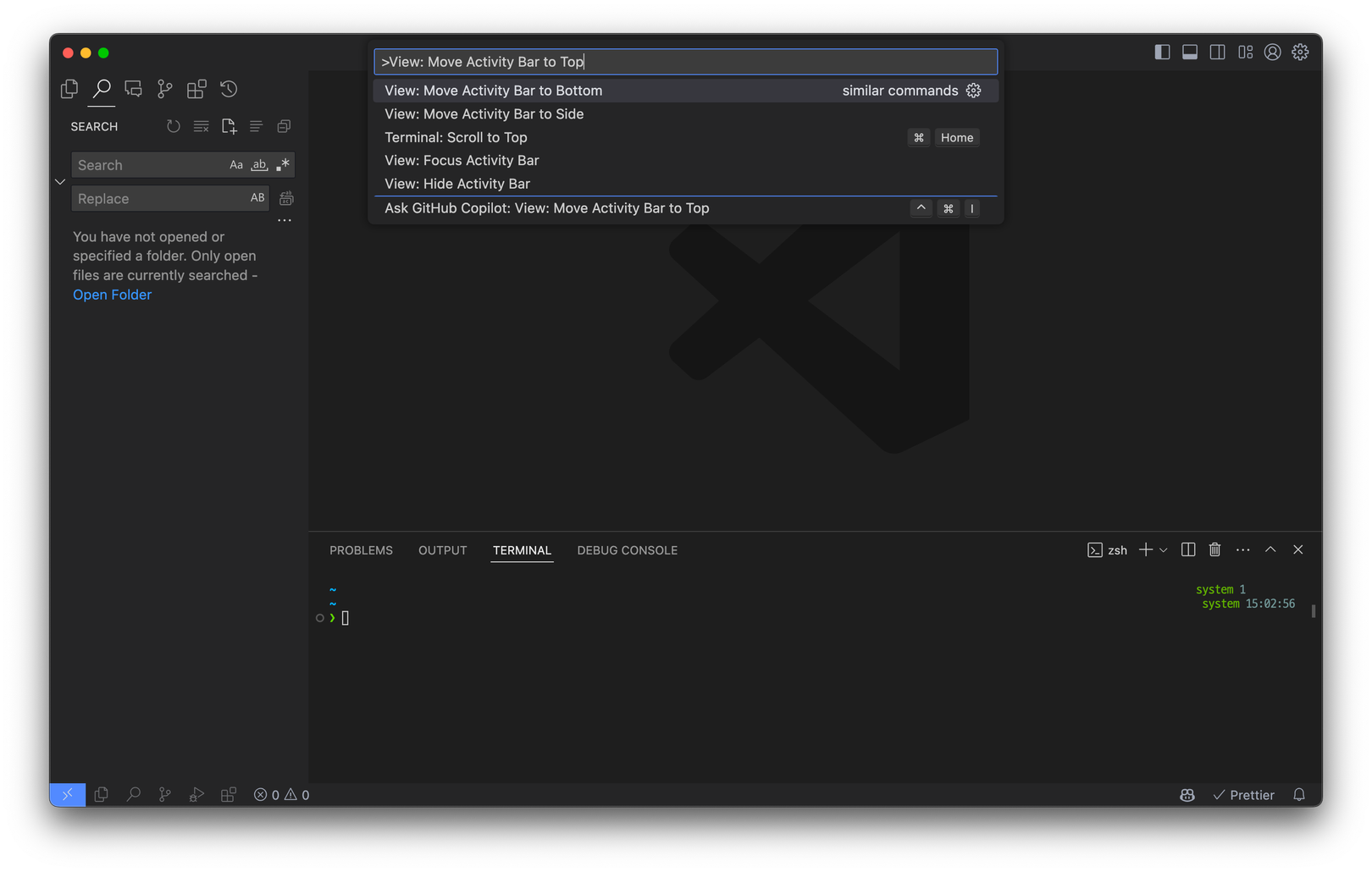
vscode 기본 설정은 왼쪽의 공간을 차지하게 되는데 맥북 13inch에서 조금이라도 공간을 확보하기 위해 위치를 변경했다. 개인적으로 깔끔한게 좋아서 외부 모니터를 연결해서 사용할때도 이 설정을 유지하고 있다.
Cmd + Shift + PView: Move Activity Bar to Top- 되돌리고 싶다면
View: Move Activity Bar to Side
이 설정을 적용하면 사이드바를 닫았을 때 Activity Bar를 볼 수 없는데 Activitus Bar 익스텐션을 설치하면 좌측 하단 상태바를 통해 접근이 가능하다.
터미널 넓게 사용하기(Bottom Panel)
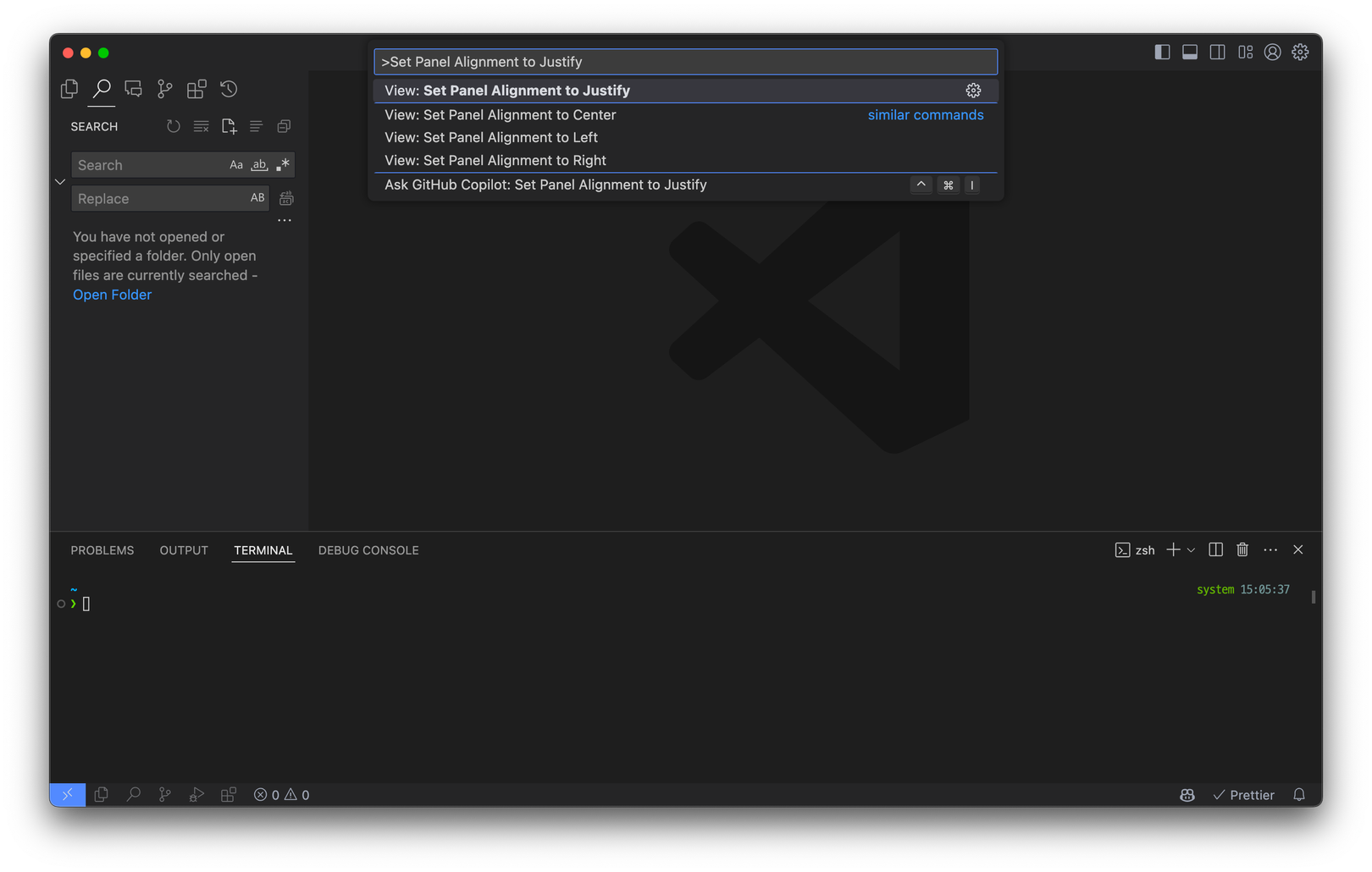
터미널을 스플릿해서 여러개 띄워서 사용할 경우 사이드바에서 영역이 끊겨 좁게 느껴지는 경우가 있는데 아래 설정을 통해 넓게 사용할 수 있다.
Cmd + Shift + PView: Set Panel Alignment to justify- 되돌리고 싶다면
View: Set Panel Alignment to center
개발 편의성을 위한 설정
Cmd + Shift + POpen User Settings (JSON)settings.json에 아래 설정 추가하기
{
  "editor.smoothScrolling": true,
  "editor.stickyScroll.enabled": true,
  "typescript.preferences.importModuleSpecifier": "non-relative",
  "typescript.suggest.autoImports": true,
  "editor.suggest.insertMode": "replace",
  "editor.codeActionsOnSave": {
    "source.addMissingImports": "explicit"
  }
}
"editor.smoothScrolling": true: 에디터에서 스크롤될 때 좀 더 부드럽게 이동하는 애니메이션 설정인데 취향대로 적용하면 좋을 거 같다."editor.stickyScroll.enabled": true: 스크롤 할 때 현재 위치한 스코프의 함수, 변수, 컴포넌트가 상단에 sticky하게 표시되도록 한다."typescript.preferences.importModuleSpecifier": "non-relative": TypeScript에서 auto import로 모듈을 가져올 때 tsconfig에서 설정한 절대경로로 가져오도록 하는 설정이다."typescript.suggest.autoImports": true: TypeScript에서 자동 완성을 사용할 경우, auto import를 활성화한다."editor.suggest.insertMode": "replace": 자동 완성을 사용할 때, 선택된 항목이 기존 텍스트를 대체하도록 설정한다.(default: "insert")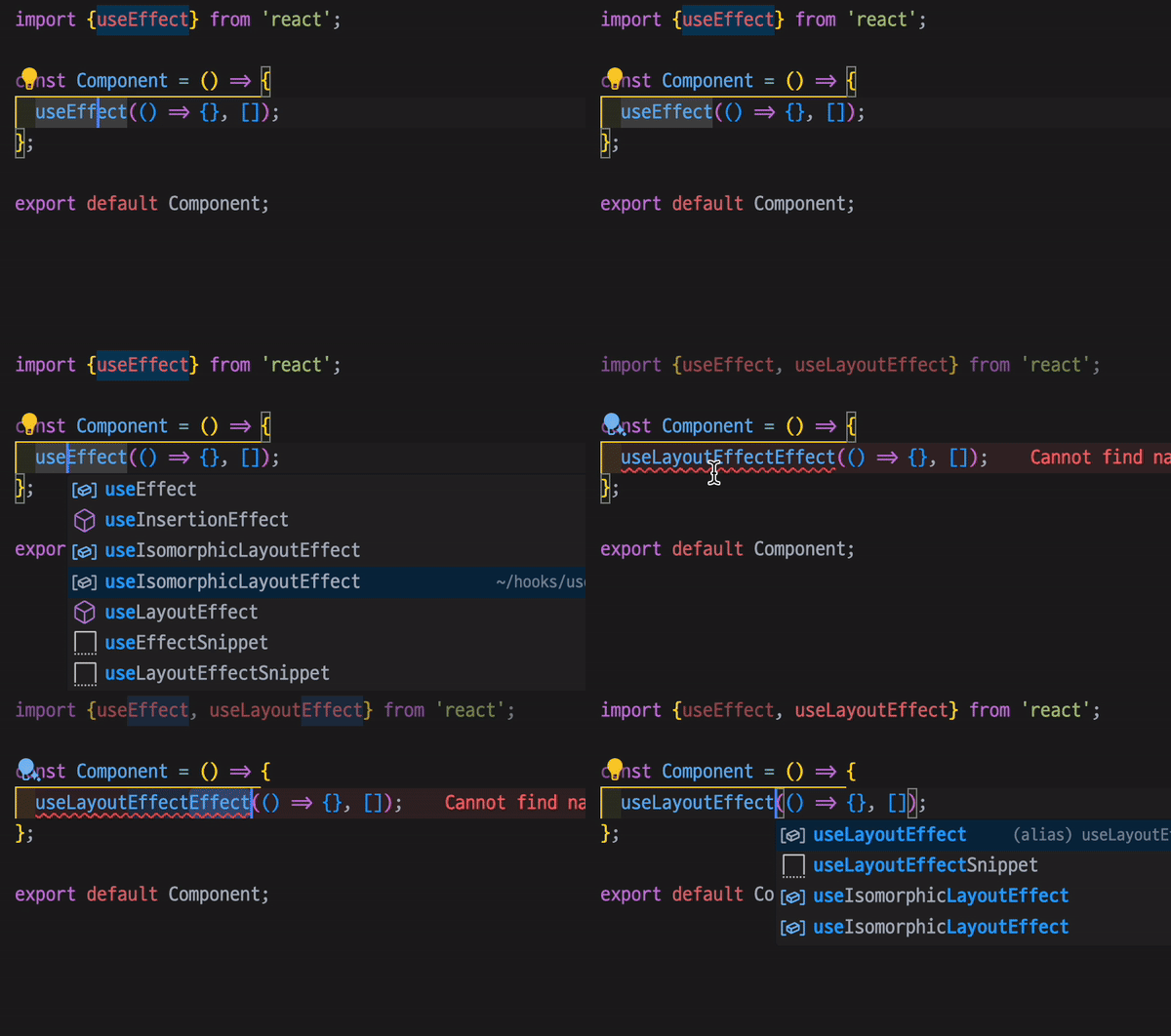
as-is 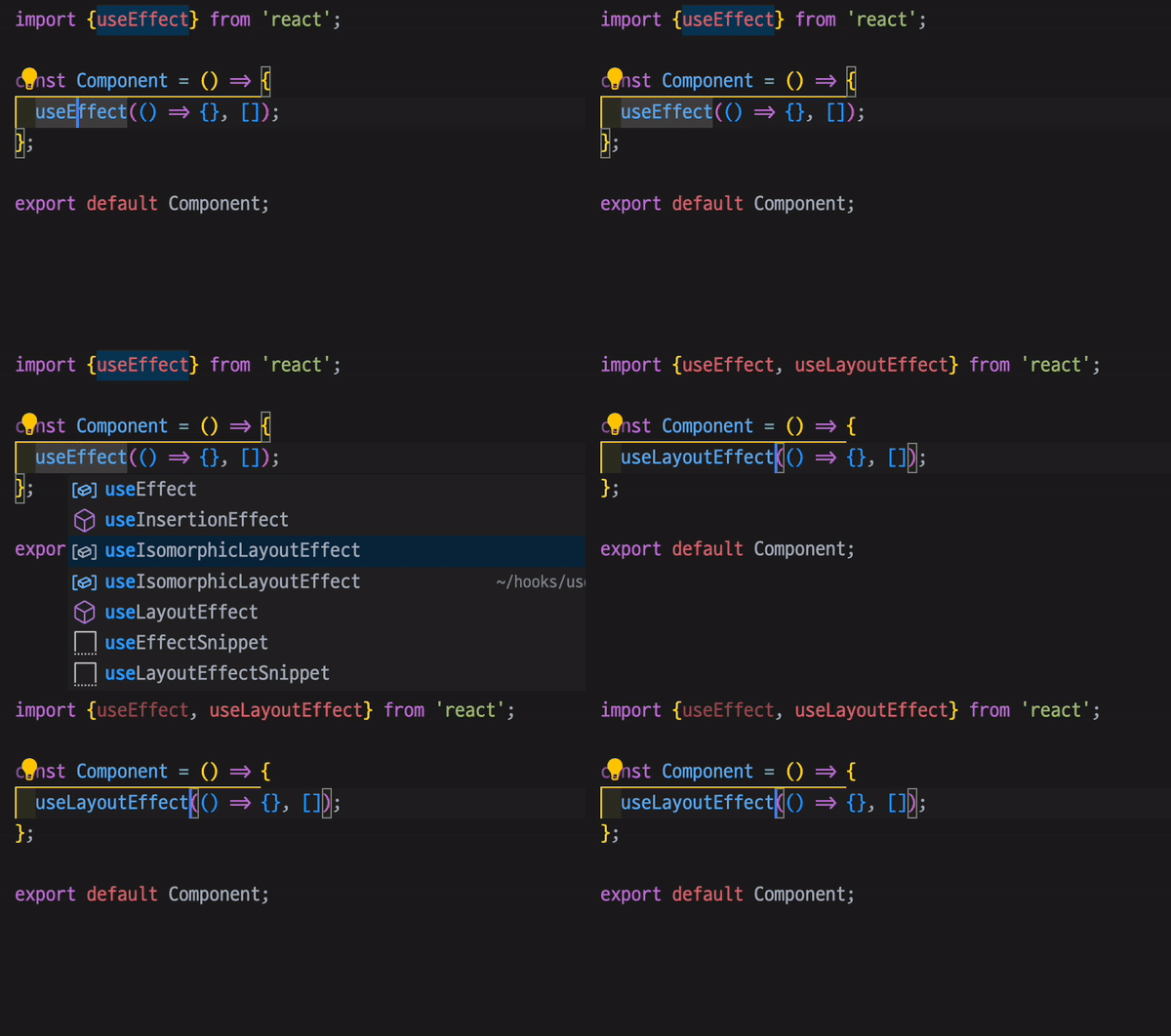
to-be "editor.codeActionsOnSave": { "source.addMissingImports": "explicit" }: 파일을 저장할 때 자동으로 누락된 import를 추가하도록 하는 설정이다. 다만, 저장을 여러번 반복해서 누를 경우 동일한 import 추가될 수 있으니 주의하도록 해야한다.
Leave a comment